Introduction
Objectives
Administration Website – User Profile Creation
Merchant Take-on Process
Below is a step-b-step process on how to onboard and configure a merchant on the iVeri Administration Website.
User Group Capture
Login: Using the URL link https://admin.host.iveri.com for the iVeri Admin Website and login credentials that have been created & e-mailed to the user.
From your homepage, navigate to: ‘Merchant Profile’ > select ‘Create’.
1. Under the ‘General information’ tab, you would capture the details of the Merchant.

Note: All the Yellow fields are mandatory and would need to be captured.
2. Send Email Notifications:
If this tab is ticked the BackOffice credentials and other notifications will automatically be sent to the Contact persons’ e-mail address.
Leave this unticked should you not want the merchant to receive e-mail notifications.
3. Distributor:
Ensure that the Distributor is (which is set to the bank’s name i.e., FNB) is set.

4. Aggregators:
Aggregators facilitate payment processing for merchants, acting as intermediaries. Acquiring banks settle payments to the aggregator, who subsequently settles funds to their associated merchants. If the merchant belongs to an aggregator, users can select the appropriate aggregator from the dropdown menu. Should the merchant not belong to an aggregator this, step must be skipped and left to the default value.
5. Scroll down to capture the Address of the Merchant.

Note: For compliance purposes, it is important that the physical and postal address of the Merchant is accurately captured in the provided fields.
Once the user has captured the address of the Merchant, click on the ‘Create’ tab.

This will now generate the iVeri Merchant Group ID number which will display on the screen, make note of it.
6. The ‘Adding integrator’ field should be left unchanged.

Should the merchant be processing through an integrator/Payment service provider, the below steps should then be followed:
Adding an Integrator:
Navigation Path: Merchant Profile > Update > General.

Click on the ‘Add integrators’ tab to access the list of integrators.
The default integrator that needs to be selected is ‘iVeri’.
Once you have selected ‘iVeri’ click on ‘Ok’.
To ensure the changes are effected, click on the ‘Update’ tab.
Applications > Create
Under ‘Merchant information’ you would be able to view the details you have captured. The Merchant Profile ID has also been successfully generated at this point.
This screen will automatically appear.
Navigation Path to this screen:
Applications > Create.
The Yellow fields are mandatory to capture.
1. Application:
Please select the applicable Product Type ID from the dropdown. For this example, we have selected DiVert as the Product Type ID.

2. Let us have a look at some of the mandatory fields that need to be captured under Application:
- Default Provider – The default provider is ‘FNBBase24 FNB South Africa’.
- Providers – Ensure that this is ticked at all times.
- Suspend application if inactive – If ticked, a merchant’s application will be suspended if in active for excess of 90 days. If unticked, the application will remain active indefinitely.
- Send Email notifications – It is recommended that this field is ticked. If there any updates to the application, the merchant will be notified.
Technical Email – Update an e-mail address that you would like to receive notifications for should any changes be made to a Merchants application.
Description – Refers to the reference description you would like to use as an identifier for the application created.

3. Application Parameters:

The Yellow fields are mandatory fields that would need to be captured.
Capture the Merchants name.
Merchant Country
Merchant City
4. Merchant Category:

From the dropdown, please select the correct trade for the Merchant you are onboarding.
Note: The Merchant Category must be captured correctly for the Merchant and must reflect their specific trade.
5. Complete the FNB BICISO details as per below:

Terminal ID:
This is a mandatory field that needs to be captured and is Acquirer dependent. The acquirer captures a Terminal ID if the acquirer has a Terminal ID.
If the merchant belongs to an aggregator, then the acquirer would need to obtain the terminal id from the aggregator. Dummy values can be also supplied, in the event the acquirer has no terminal ID’s. The terminal must be 8 characters in length.
Terminal (AN.8) in this example is 11111111
Card Acceptor ID:
This is a mandatory field that needs to be captured and is Acquirer dependent. The card acceptor id’s maximum length is 15 characters in length. The character length of each card acceptor id is dependent on the Acquirer.
Card Acceptor ID/Merchant ID (N.15) in this example is 12345678
Lastly, before clicking on the create tab, please ensure that the details captured for the merchant is correct. Once you have done your checks, click on the ‘Create tab’.
Email Notifications
An automated system generated e-mail will be sent as confirmation for the application that was created for the Merchant.

The e-mail confirms:
- Merchant Profile / User Group ID
- Live and Test Application IDs
- Product Type
- Confirmation of the Technical e-mail address captured.
- Application Description as captured on the application you have created.

Note: Once the user has clicked on the ‘Create’ tab the BackOffice Services screen will appear.
From this screen you will note the Merchant Profile / User Group ID.
The Merchant Profile / User Group ID is especially important when logging a query. This must be provided at all times.
The Merchant Profile / User Group ID will also reflect on your daily report you receive.

BackOffice Services
Application Identifiers:
There are 2 application modes: Live and Test.
To ensure updates and changes are configured for a merchant’s application, select the LIVE application.
BackOffice Services:
How to navigate to the BackOffice Services screen:
Applications > Update > BackOffice Services
1. This is where BackOffice Services are created for the merchant. This is a mandatory step that would need to be updated in order to activate an application for a Merchant.
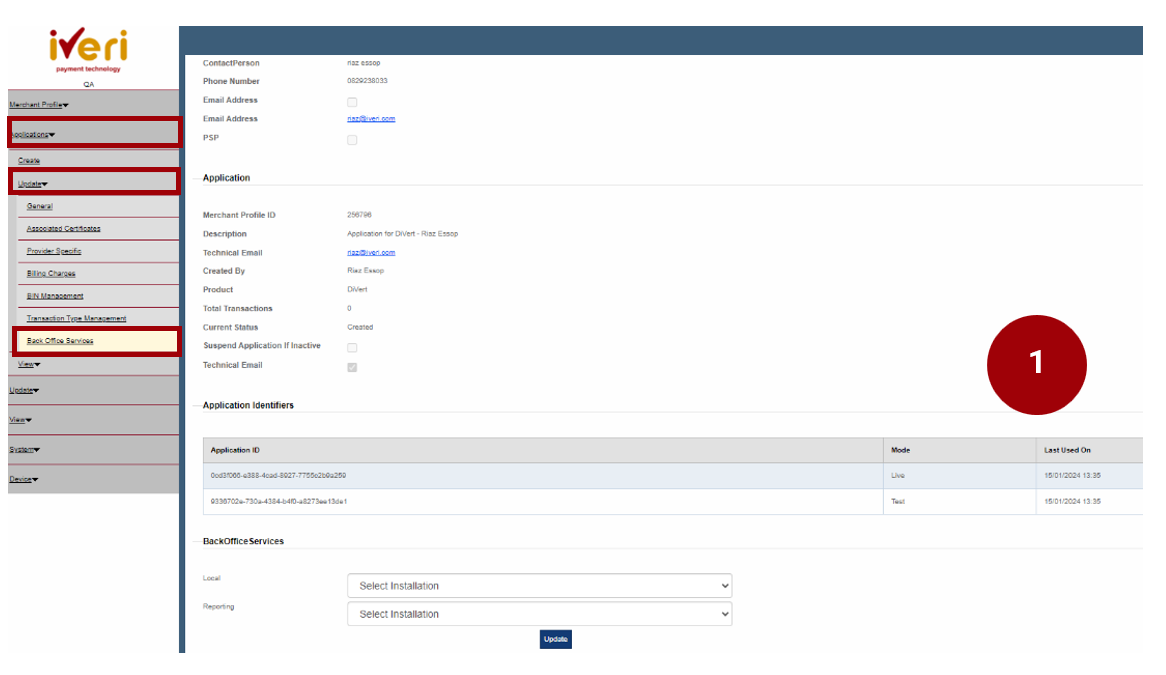
2. Under BackOffice Services, under ‘Local’, click on the dropdown and navigate your way to ‘FNB Back Office’.
This update will provide the Merchant access to BackOffice.
Once the user has captured the details under Local, click on the ‘Update’ tab.
This following screen will now appear.

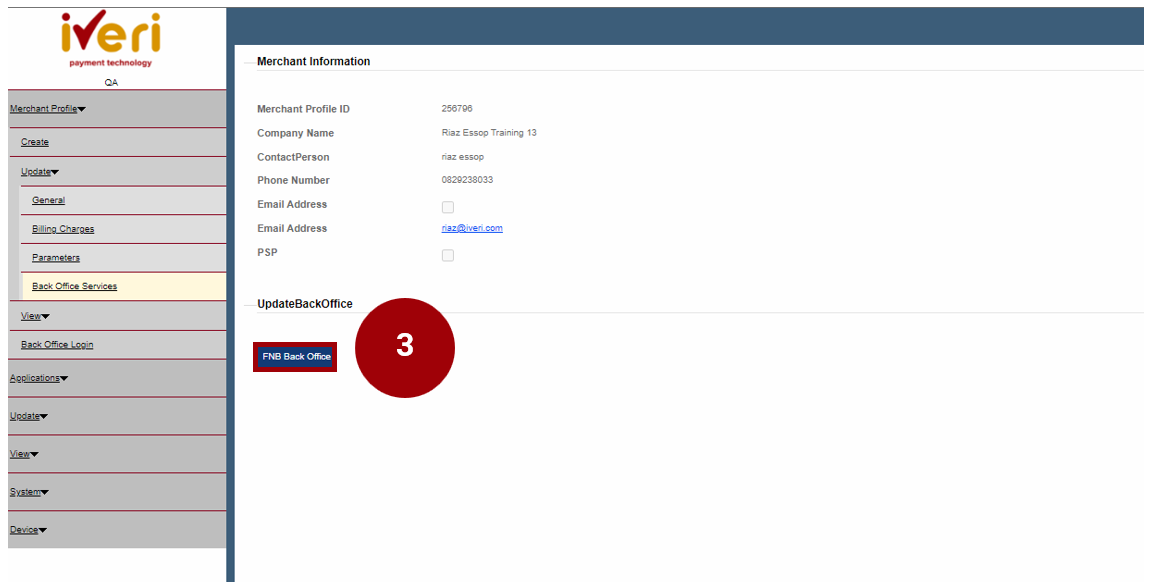
3. Under the ‘Update BackOffice’ tab, the user would need click on the ‘FNB Back Office’ tab.
Note: The purpose of this update is to sync the new merchant application that you have created to iVeri BackOffice.
Additional BackOffice services configurations:
Users may be required to configure additional BackOffice Services for a Merchant. The Delta is dependent on the solution the merchant has agreed upon.
‘Enterprise’ configuration is an essential component for Enterprise setup within iVeri's eCommerce solution. The ‘Enterprise’ configuration under BackOffice Services only applies when the merchant is processing via an integrator or payment service provider. If this is not the case, this configuration should be left unchanged.
4. This Merchant page will appear. Click on ‘Update’ to synch the new application to BackOffice for this Merchant.

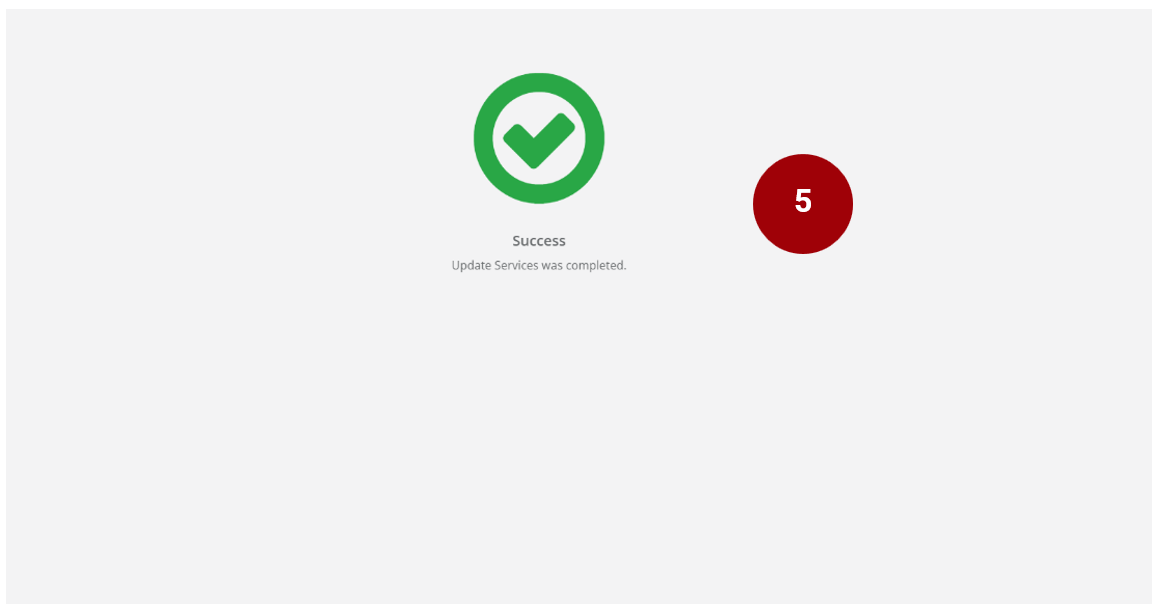
5. The following screen will appear confirming the successful update.
Setting Application Status to Active
How to Navigate to this Screen:
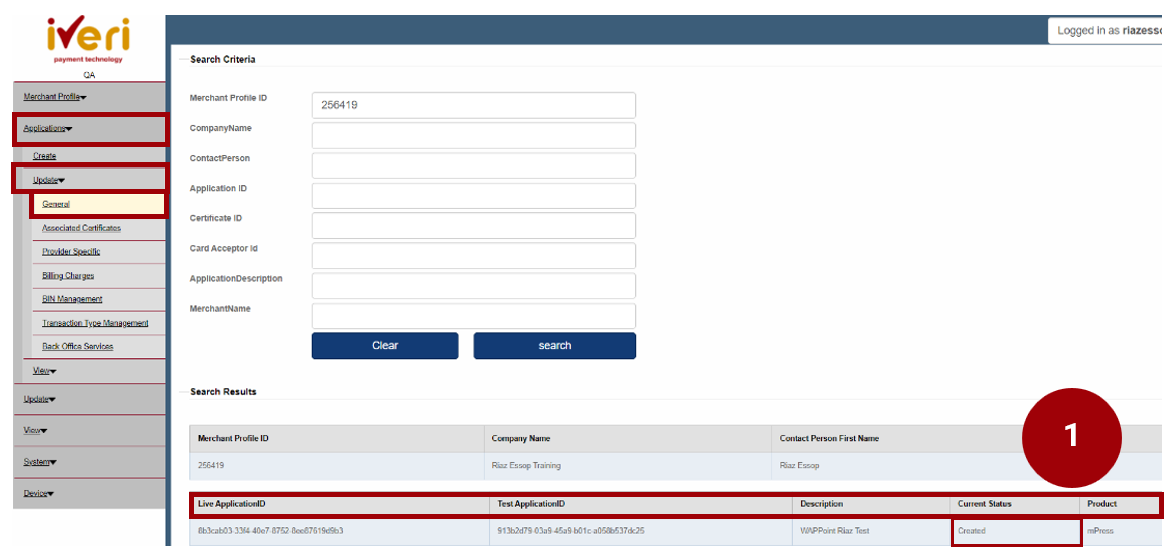
Applications > Update > General
The current Merchant application that you have created will be defaulted to ‘Created’ status.
The user would need to change and update the status from ‘Create’ to ‘Active’. Setting the application to ‘Active’ is a crucial step in the onboarding process, as it will allow the Merchant the ability to trade.
1. Click on the ‘Live’ Application ID.
The following screen will appear.
2. Navigate your way to ‘Current Status’ and from the dropdown select ‘Active’.
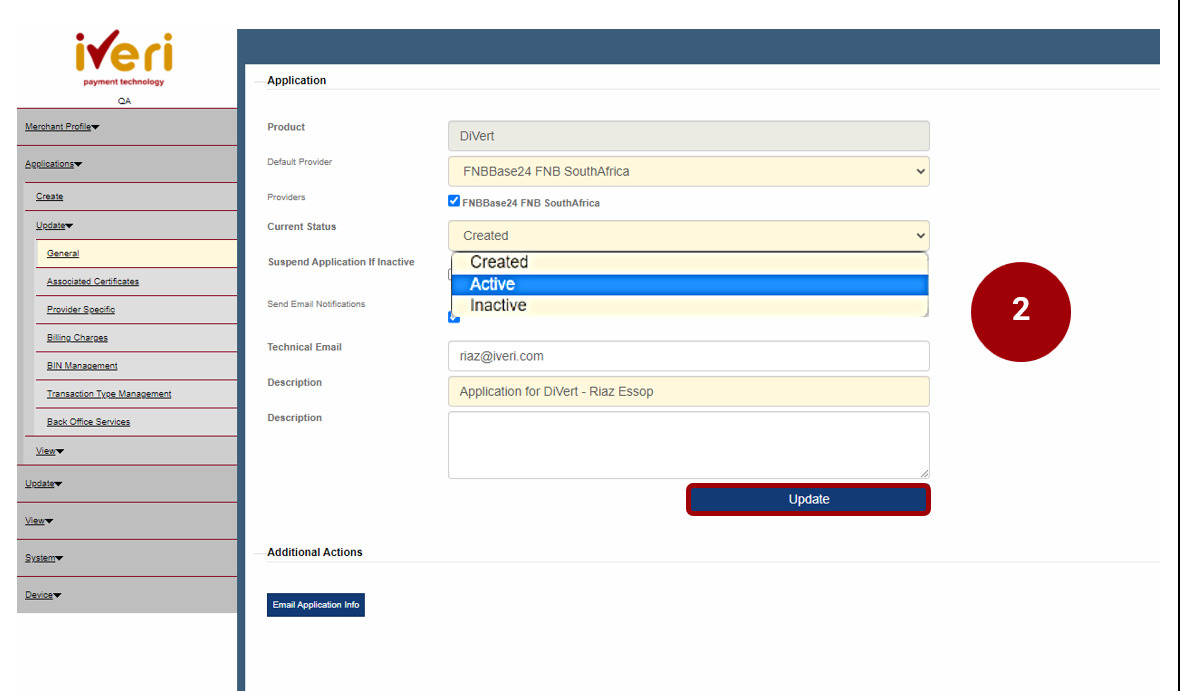
Once you have made the selection, click on ‘Update’.

The below successful message will then appear on the top of the same screen confirming that the Update was successful:

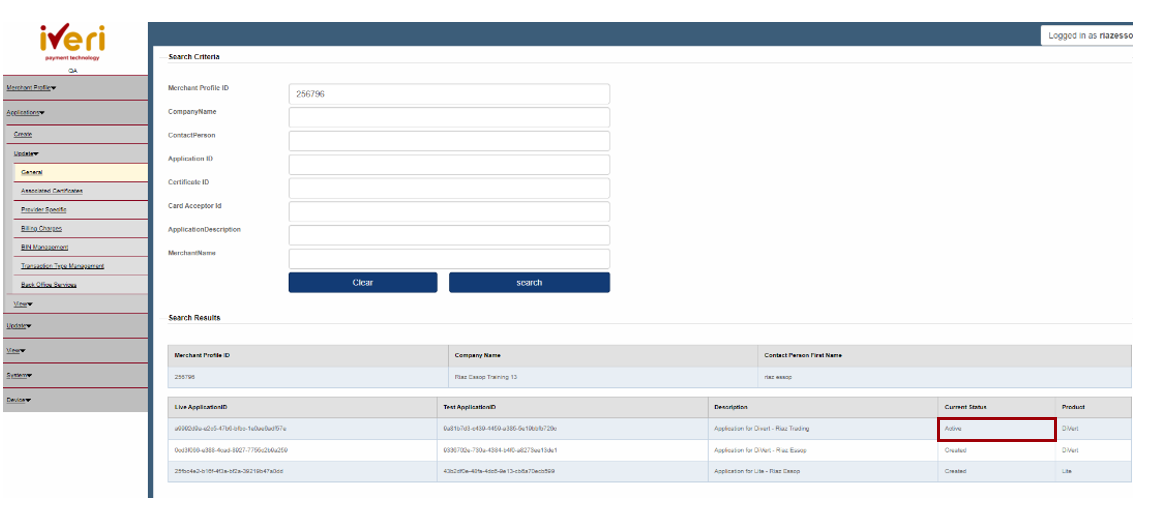
3. The application status has now been changed to ‘Active’.
4. This is a sample of the confirmation e-mail the Merchant will receive confirming that their application has been successfully updated.

3D Secure e-Commerce
3D Secure authentication is an additional layer of security used in online credit and debit card transactions. It is designed to provide increased protection against unauthorised use of cards for online purchases.
A scenario of how it works:
John is an avid online shopper who frequently purchases electronics from an e-commerce website called "ElectroZone." One day, he decides to buy a new smartphone from ElectroZone's website, which offers a wide range of products at competitive prices.
Here's how the 3D Secure authentication process applies to John's online purch
key Takeaways:

- John's online purchase was secured with 3D Secure authentication, which added an extra layer of protection against unauthorised transactions.
- The verification process ensured that only John, the legitimate cardholder, could authorise the transaction, reducing the risk of fraudulent activity.
- ElectroZone, as the merchant, benefited from reduced chargeback risks and increased trust from customers like John, who appreciate the added security measures in place.
Overall, the 3D Secure authentication process helped facilitate a smooth and secure online transaction for John, ensuring a positive shopping experience while protecting both him and ElectroZone from potential fraud.
Key Benefits of 3D Secure Authentication:
- Enhanced Security: By requiring additional authentication steps, 3D Secure helps protect both customers and merchants from unauthorized transactions and fraudulent activities.
- Reduced Chargebacks: Authenticating transactions with 3D Secure can reduce the likelihood of chargebacks resulting from disputed or fraudulent transactions, providing greater peace of mind to merchants.
- Customer Confidence: Knowing that their transactions are protected by an extra layer of security, customers may feel more confident and secure when making purchases online, leading to increased trust and loyalty to merchants.
Overall, 3D Secure authentication plays a vital role in safeguarding online transactions, promoting trust between merchants, card issuers, and customers in the digital marketplace.
3D Secure enablement on the Administration Website
The activation of 3D Secure hinges on the specific terms outlined in the merchant agreement with FNB and their corresponding Sales Manager.
These requirements, however, vary based on the individual Merchant and the activation status of 3D Secure, applicable to the following solutions:
- Divert
- Lite
- Enterprise
Should the Merchant be enabled for 3D Secure, the following steps must be followed:
Navigation path:
Applications > Update > Provider Specific) the 3D secure configuration of functions is related to Diners, Visa, Mastercard & American Express.
1. The following screen will appear. The user will select the product to configure and enable for 3D Secure.
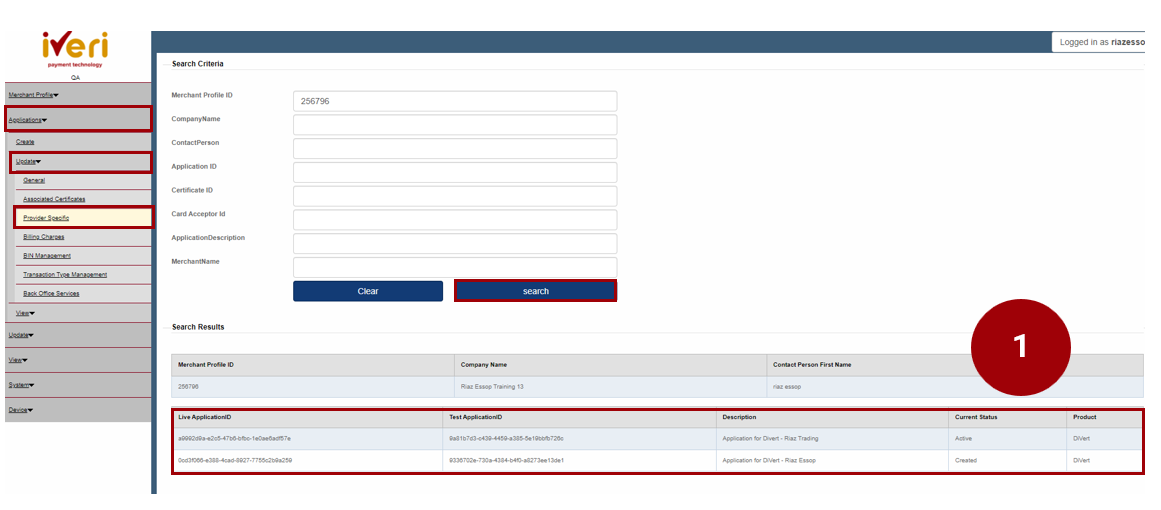
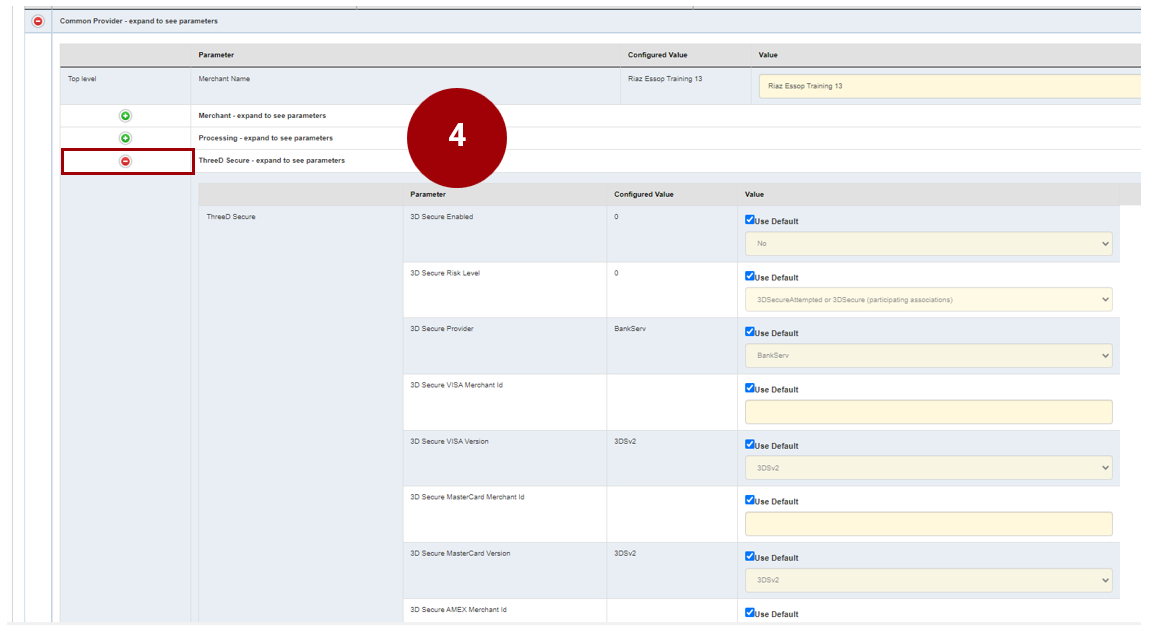
Navigate to the ‘Common Provider’ parameter and click on the expansion button.
Once you have expanded the ‘Common Provider’ tab, the following selections will appear.
2. From the list of parameters, please select the ‘Third party’ expansion button.
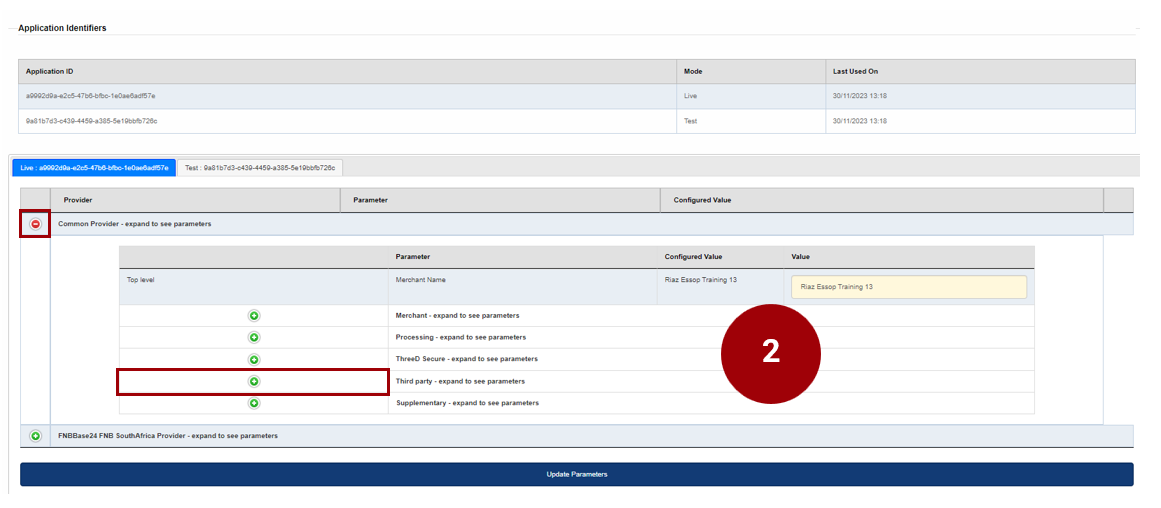
4. From the ‘ThreeD secure Parameter’ the user can now enable and configure 3D Secure for each Card scheme applicable to the merchant in accordance with the merchant agreement.
5. In order to configure the 3D to configure 3D secure, the following parameters would need to be configured:
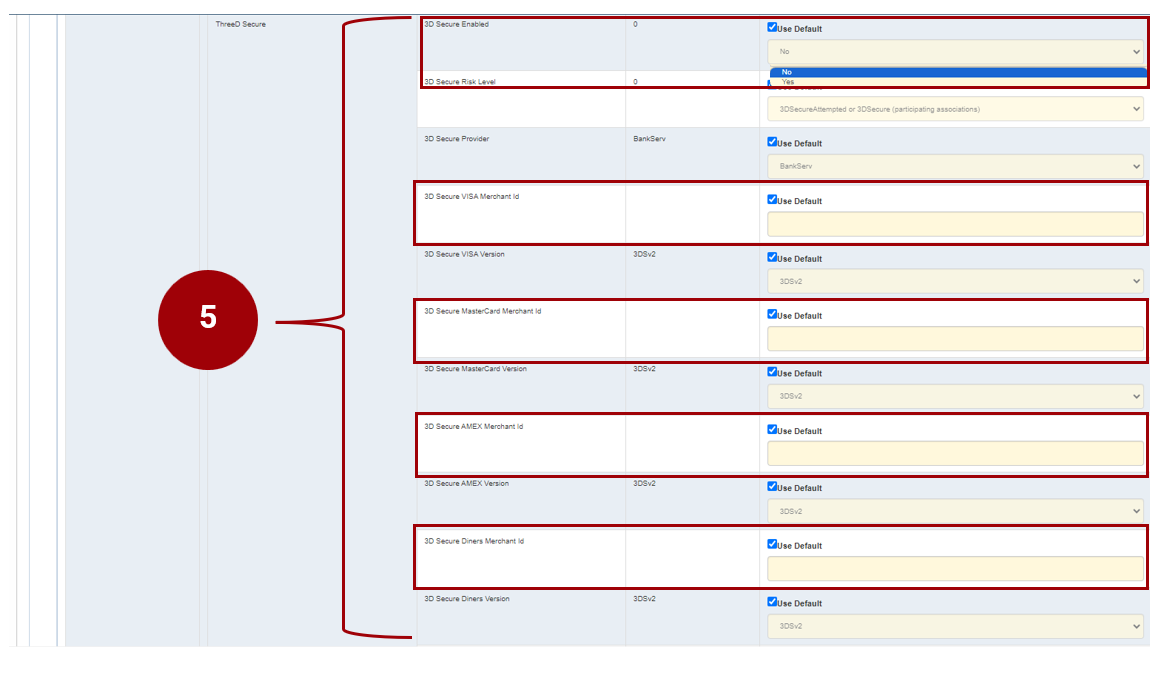
3DS Secure Enabled: Untick default and change drop down to Yes
3D Secure Risk Level, is dependent on the merchant agreement but defaulted to ‘3DSecureAttempted or 3DSecure (participating associations)’.
3D Secure Provider: Remains ticked & defaulted to BankServ.
Untick default and populate 3D Secure MasterCard Merchant ID.
Untick default and populate 3D Secure VISA Card Merchant ID.
Untick default and populating 3D Secure AMEX Merchant ID.
Untick default and populate 3D Secure Diners Merchant ID.
The screen shot demonstrates all the configurations for 3D Secure.
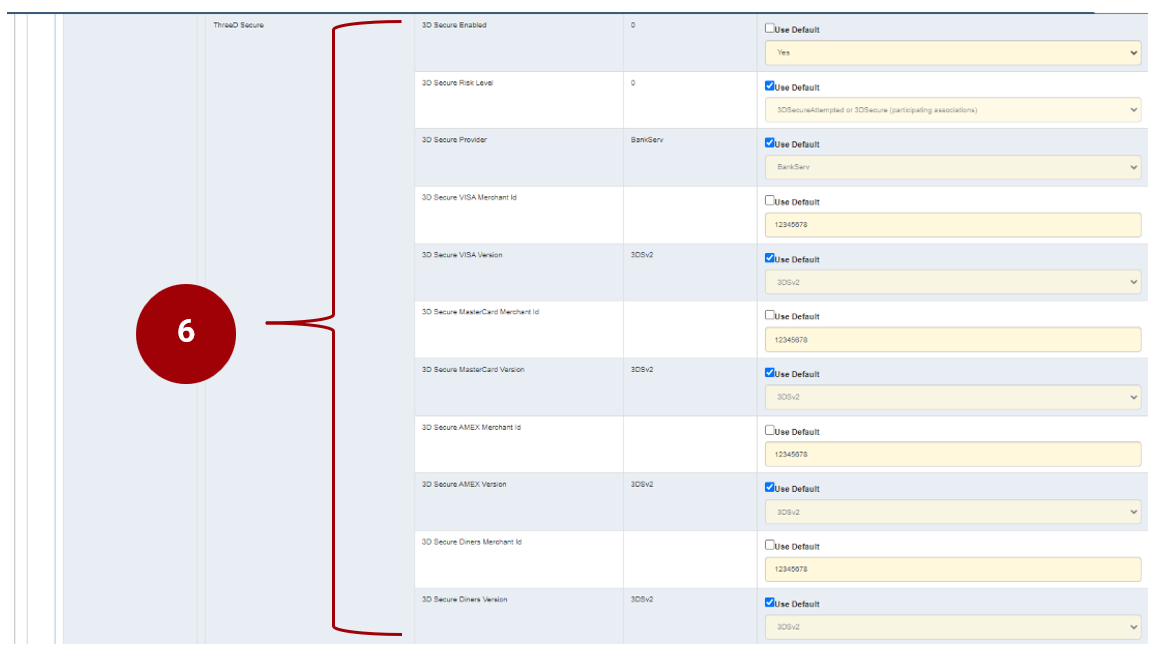
Lastly, ensure that all parameters have been captured accurately.
Click on the ‘Update Parameters’ tab to save changes.

Capturing additional products using the same User Group ID
In some instances, based on the merchant’s business needs to accept various payment methods, there may be a requirement to have more than one iVeri solution. The process is simple, as there is no need for a user to replicate the entire take-on process.
Below, we will walk through the process of capturing an additional iVeri solution for a merchant using the same User Group ID.
1. From the menu, the user will navigate to:
Applications > Create.

Click on the Application found under ‘Search Results’.
2. Populate all the mandatory fields in yellow:

Product TypeID:
This crucial parameter is where the user will select from the dropdown, the iVeri solution for the merchant, based on the merchant agreement.
Default Provider:
The user will select the default provider/s listed here. This will vary per acquirer.
Suspend if application if inactive:
The user will check this box should they want a merchant application to suspend if inactive for a period of 3 months. Should the user check this box and the merchant’s application is suspended due to inactivity, the merchant will not be able to process transactions until the suspension has been lifted.
Send email notifications and technical email:
Checking the box will ensure that the merchant receives e-mail notifications. The technical e-mail address can be captured here and may be different from the e-mail address captured under the merchant’s general information. The technical e-mail address will allow the merchant to receive e-mail notifications for any updates/ changes that are made to their application.
Description:
The user will select a description for the application. This is entirely up to the user or acquirer on what the standard description should be when capturing this specific field.

Application Parameters
3. Here you would need to capture all the mandatory fields in yellow relating to the merchant:

Merchant name:
Trading name of the merchant
Country and city of merchant origin:
Accurately capture the country and city applicable to the merchant.
Merchant Category:
Accurately capture the applicable industry the merchant falls into.
Terminal ID:
This is a mandatory field that needs to be captured and is Acquirer dependent. The acquirer captures a terminal ID if the acquirer has a terminal ID. If the merchant belongs to an aggregator, then the acquirer would need to obtain the terminal id from the aggregator. Dummy values can also be supplied, in the event the acquirer has no terminal ID’s. The terminal must be 8 characters in length.
Card Acceptor ID:
This is a mandatory field that needs to be captured and is Acquirer dependent. The card acceptor ID’s maximum length is 15 characters in length. The character length of each card acceptor id is dependent on the Acquirer.
Once you have done your checks, click on the create tab.

BackOffice Services
1. The user will automatically be directed to the BackOffice Services menu.
The navigation path:
Applications > Update > BackOffice.
Note: The purpose of this update is to sync the new merchant application that you have created to iVeri BackOffice.

2. Under BackOffice Services, under ‘Local’, click on the dropdown and navigate your way to ‘FNB Back Office’.
This update will provide the Merchant access to BackOffice.
Once the user has captured the details under Local, click on the ‘Update’ tab.
Application Parameters
This following screen will now appear.

3. Under the ‘Update BackOffice’ tab, the user would need click on the ‘FNB Back Office’ tab.

4. This Merchant page will appear. Click on ‘Update’ to sync the new application to BackOffice for this Merchant.

5. The following screen will appear confirming the successful update.
Setting Application status to Active
Navigation path:
Applications > Update > General.
1. Select the Live Application ID/ iVeri Solution you would like to set to Active.
The user will be able to set applications that have been created to Active status including changing a merchant’s application that has been suspended due to inactivity, can be changed here.

2. From the Application menu, navigate your way to the Current Status tab. From the dropdown, select ‘Active’.
Lastly, to ensure that these changes are in effect, click on the ‘Update’ tab.
Note: The next step, the user will repeat the 3D Secure enablement process
MOTO Transactions
MOTO (Mail Order/Telephone Order) are systems that allow businesses to take and manage card transactions remotely. This web-based payment system facilitates payment transactions that can be taken over the telephone or via email or written requests.
How MOTO Transactions work:

Examples of common MOTO transactions
It is common to see MOTO systems in businesses that take orders for products or services through emails or by telephone.
Some of the more notable examples include:
- Health & fitness services
- Repair services
- Retail outlets
- Online retailers
- Travel agencies
However, a customer may also request a MOTO payment in the case of them:
- Making a purchase over the phone or to online retailers.
- Cannot physically reach the store’s location in time to pay.
- Ordering from a remote location or requesting a service for their home.
Enabling MOTO transactions for a merchant
Below is the process of how to enable MOTO transactions for a merchant on the Admin Website:
Navigation Path:
Applications > Update > Provider Specific.
Click on the ‘Common Provider’ expansion tab as illustrated.
1. Navigate to the ‘Processing’ parameter and click on the expansion button.

2. Navigate your way to the ‘Cardholder Presence Default’ Parameter. This parameter will be defaulted to ‘Not specified’.

3. Untick the ‘Use Default’ tab. From the drop down, select ‘Mail/Telephone Order (single transaction)’.

4. Lastly, to ensure the change has been saved, click on the ‘Update Parameters’ tab.

Recurring Transactions
Recurring transactions refer to payments or financial transactions that occur on a regular, predetermined schedule. These transactions are typically set up to recur automatically without the need for manual intervention for each occurrence. The frequency of the transactions is predetermined and agreed upon by the parties involved.
Here are some examples of recurring transactions:
Gym Memberships:
Customers sign up for monthly or annual gym memberships, and the membership fees are automatically charged to their credit cards or bank accounts on a recurring basis.
Insurance Premiums:
Insurance companies offer various insurance products with recurring premium payments. Policyholders agree to pay a fixed premium amount at regular intervals (e.g., monthly, quarterly, annually) for coverage.
Subscription Boxes:
Subscription box services deliver curated products to customers on a regular basis (e.g., monthly, quarterly). Customers sign up for subscriptions and are automatically billed for the subscription fee each billing cycle.
Magazine Subscriptions:
Subscribers receive monthly or quarterly issues of magazines or newspapers. Subscription fees are automatically charged to the subscriber's payment method at regular intervals.
Online Software Subscriptions:
Customers subscribe to online software services such as project management tools, graphic design software, or accounting software. Subscription fees are automatically deducted from the customer's account at the beginning of each billing cycle.
How recurring transactions work:

Enabling recurring transactions for a merchant
Merchants that process recurring transactions need to be enabled as such via the Admin Portal.
In the authorization message that is sent to the Acquirer, as part of the transaction process, there is specific data that indicates that a transaction is recurring, and the merchant has been enabled for recurring transactions.
We will have a look at how to enable a merchant for recurring transactions via the Administration Website:
Navigation Path:
Applications > Update > Provider Specific.
Click on the ‘Common Provider’ expansion tab as illustrated.
1. Navigate to the ‘Processing’ parameter and click on the expansion button.

2. Navigate your way to the ‘Cardholder Presence Default’ Parameter. This parameter will be defaulted to ‘Not specified’.

3. Untick the ‘Use Default’ tab. From the drop down, select ‘Recurring Transaction.’

4. The next parameter that needs to be update is the ‘Recurring Indicator allowed’.
The parameter is defaulted to ‘No’.

4. Untick the default value. From the dropdown menu, select ‘Yes’.

5. Lastly, navigate to the ‘Update Parameters’ tab to save changes.